Overview
RenOff is offline-first: your data stays on your PC. No account. No cloud sync.
Installation
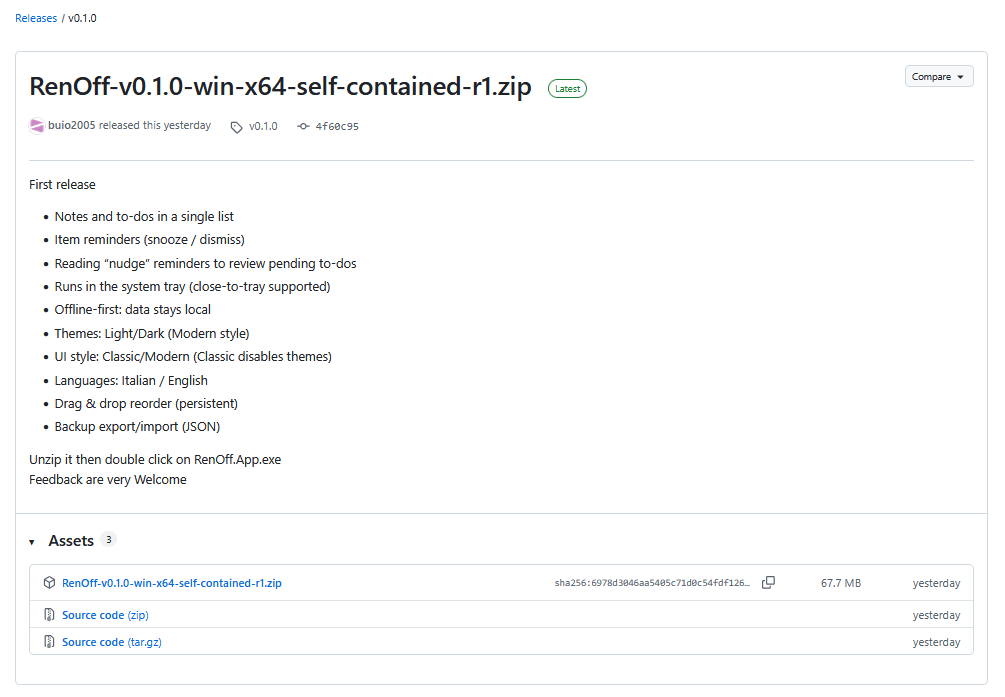
Official downloads are published on GitHub Releases.
- Self-contained: includes all required dependencies (download from Releases).
- Installer: standard Windows installer (if/when available).
Recommended steps (self-contained):
- Open Releases.
- Download the self-contained archive.
- Extract it to a folder of your choice.
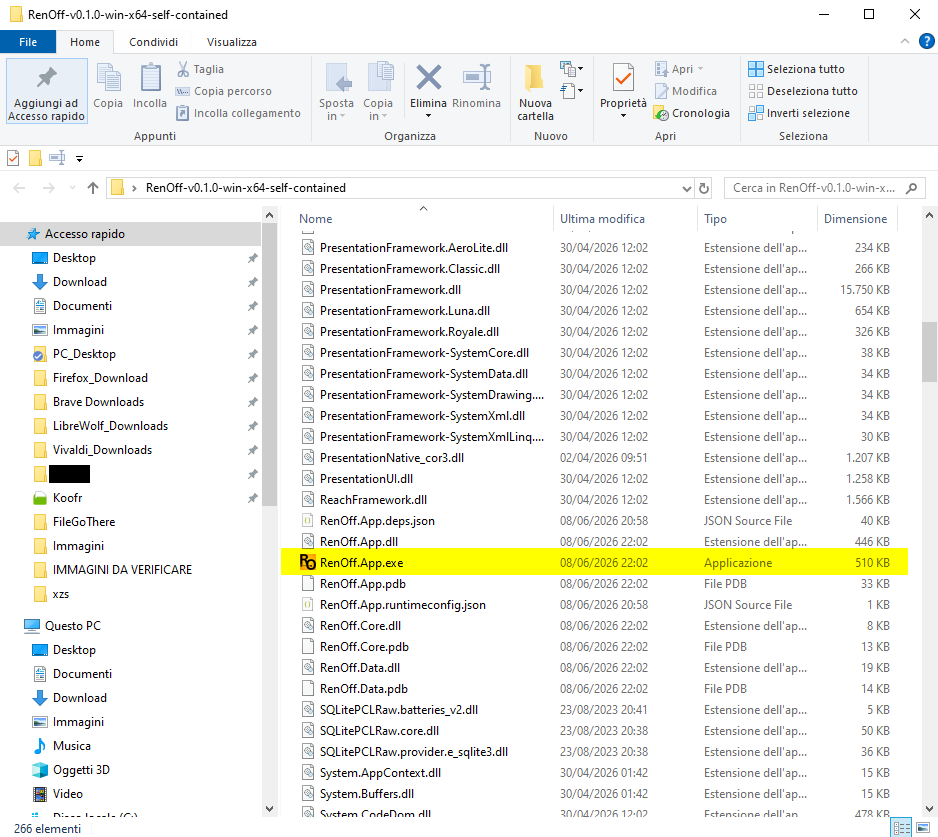
- Run RenOff.App.exe.
First run
Quick sanity check:
- Launch RenOff.
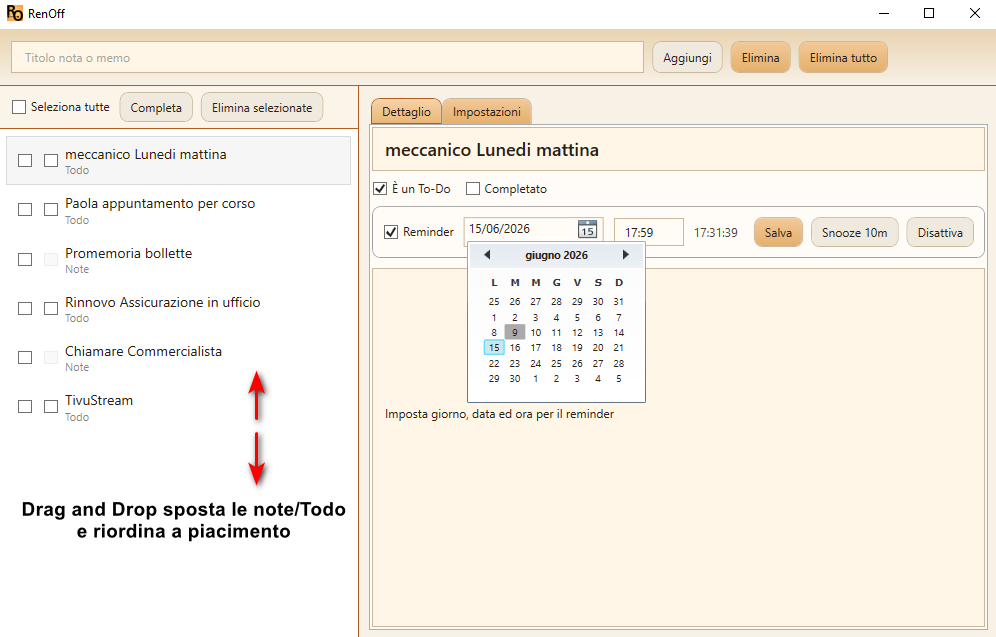
- Create a test note or to-do from the top bar.
- Select the item, enable a reminder and press Save.
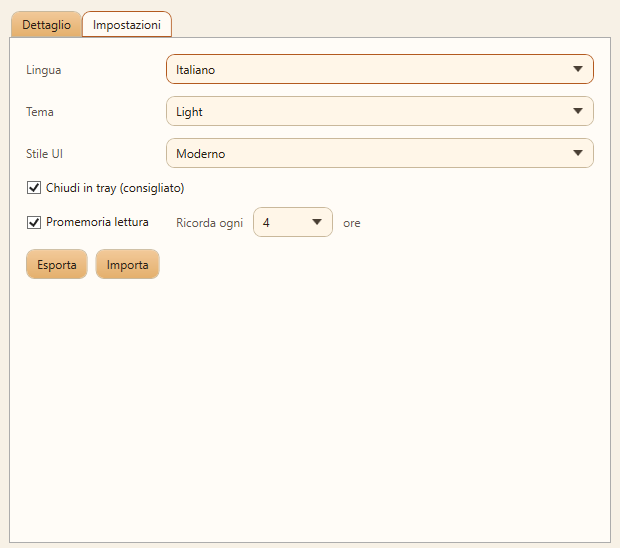
- Open Settings and enable Close to tray (recommended).
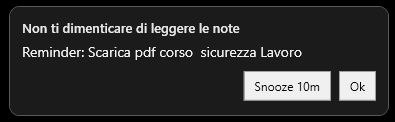
- Wait for the notification or try Snooze.
UI
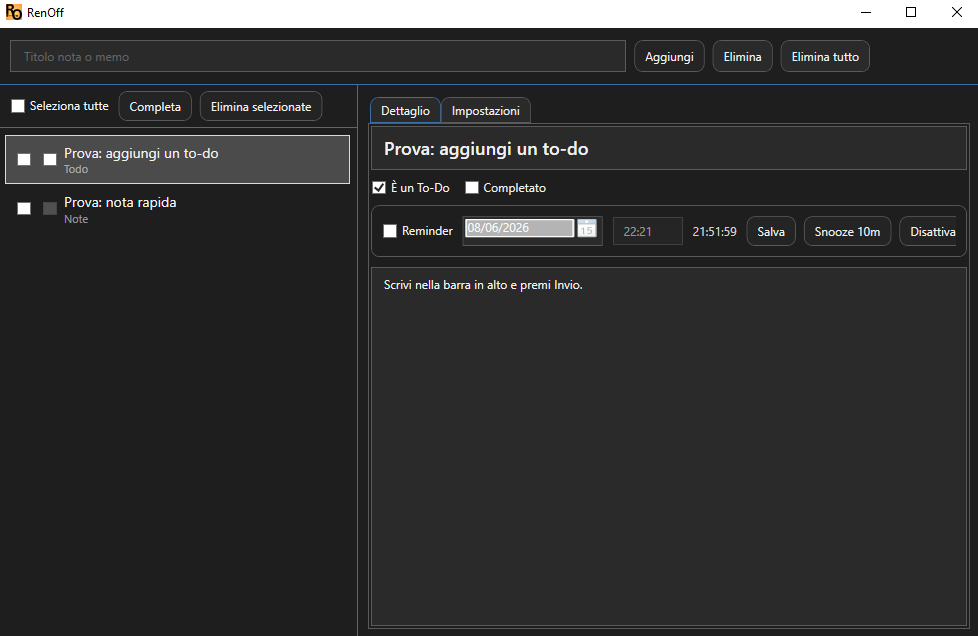
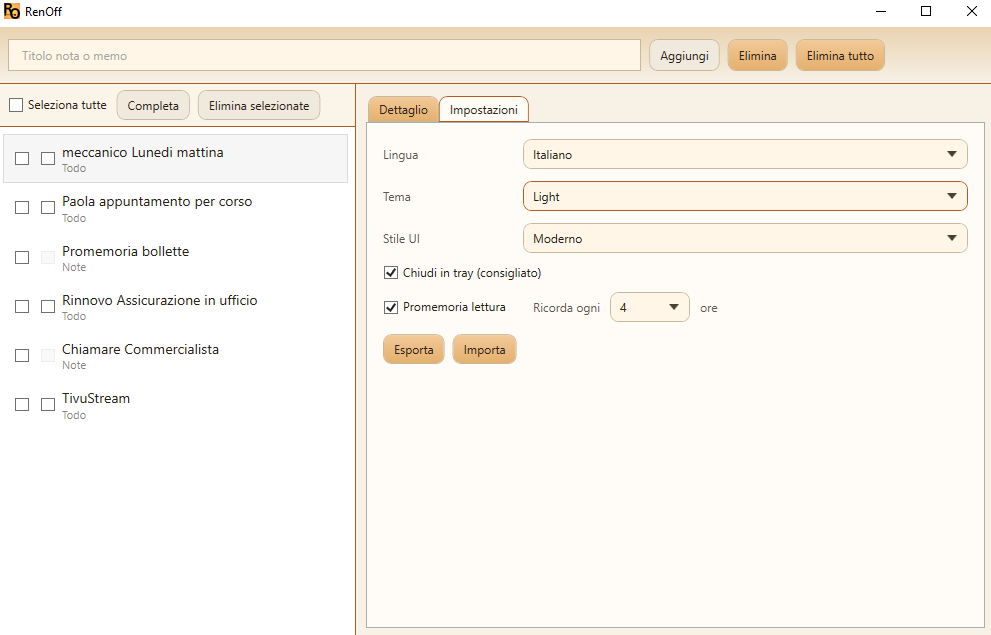
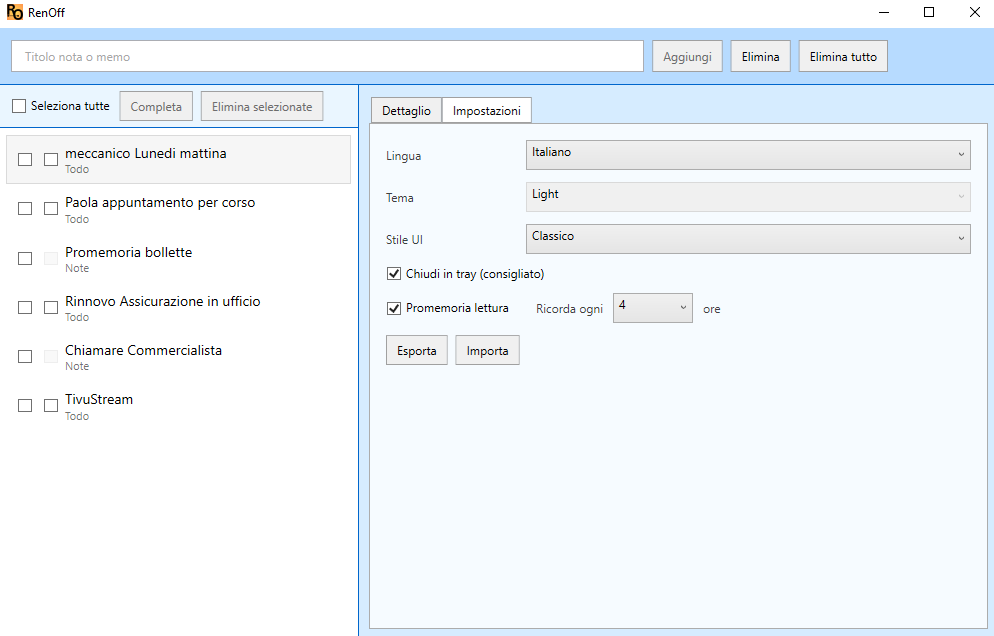
RenOff supports multiple visual options: Light/Dark theme and Modern/Classic UI style.
Dark theme
UI style: Modern vs Classic
Database
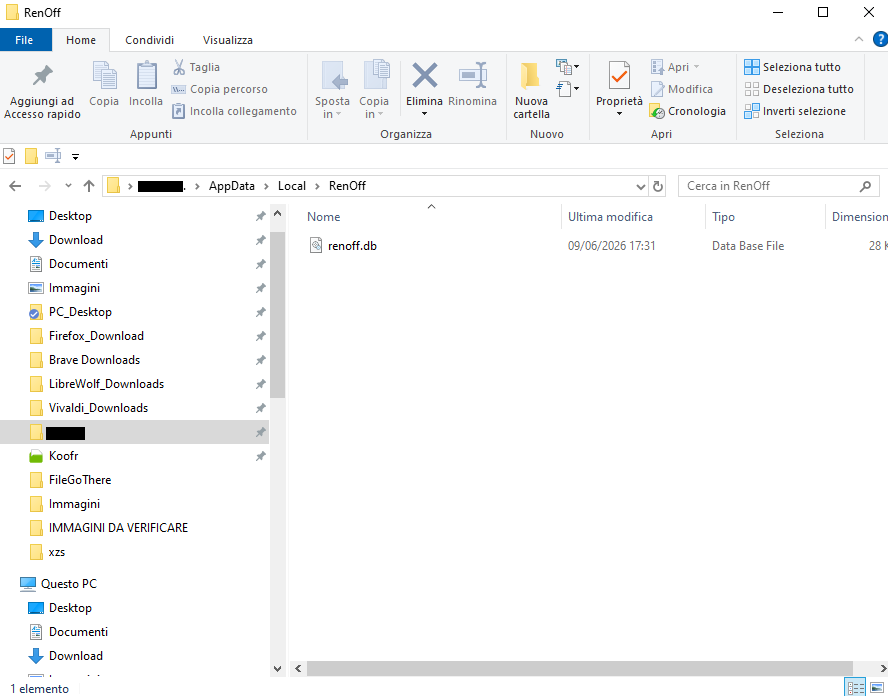
RenOff stores data in a local SQLite file:
%LOCALAPPDATA%\RenOff\renoff.db
With the self-contained build, the default location remains the same.
Backup
You can back up in two ways:
- Export/Import (recommended): create a backup file and restore it from the app.
- Database copy (advanced): copy renoff.db while RenOff is closed.
For “database copy”, close RenOff, copy the file somewhere safe, and to restore put it back in the same location.
Export & transfer
To move your notes/reminders to another device:
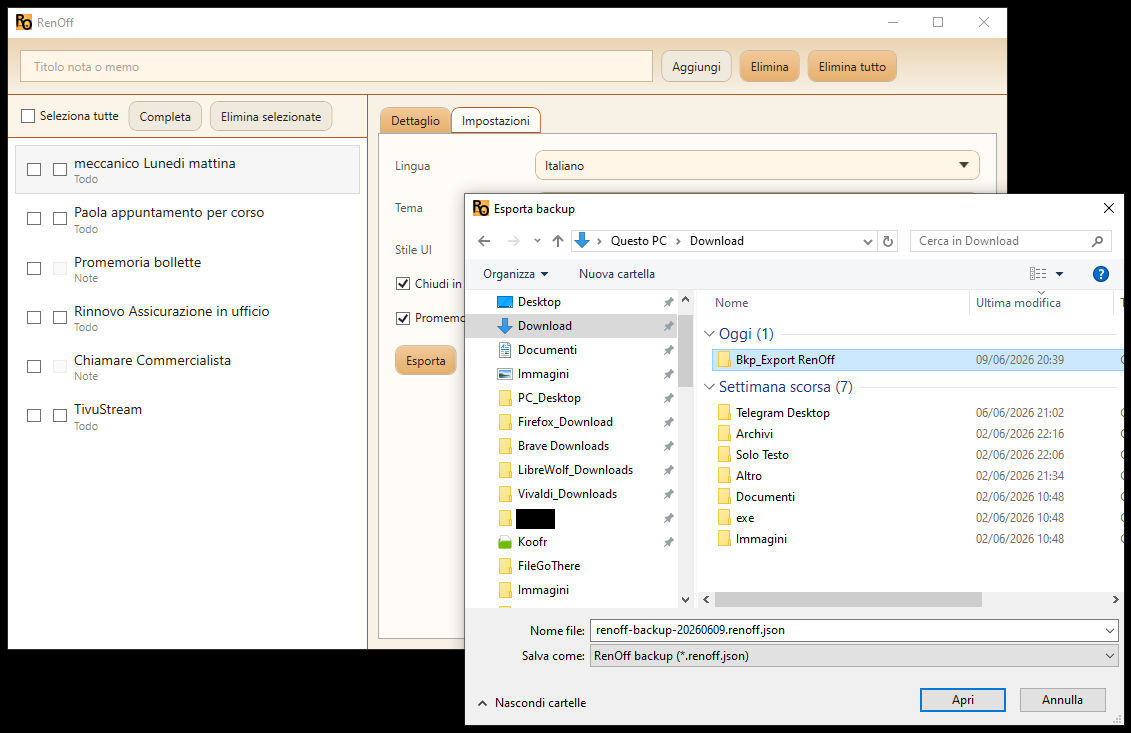
- Open Settings and click Export.
- Choose a folder and save the backup file.
- Transfer the file to the second device.
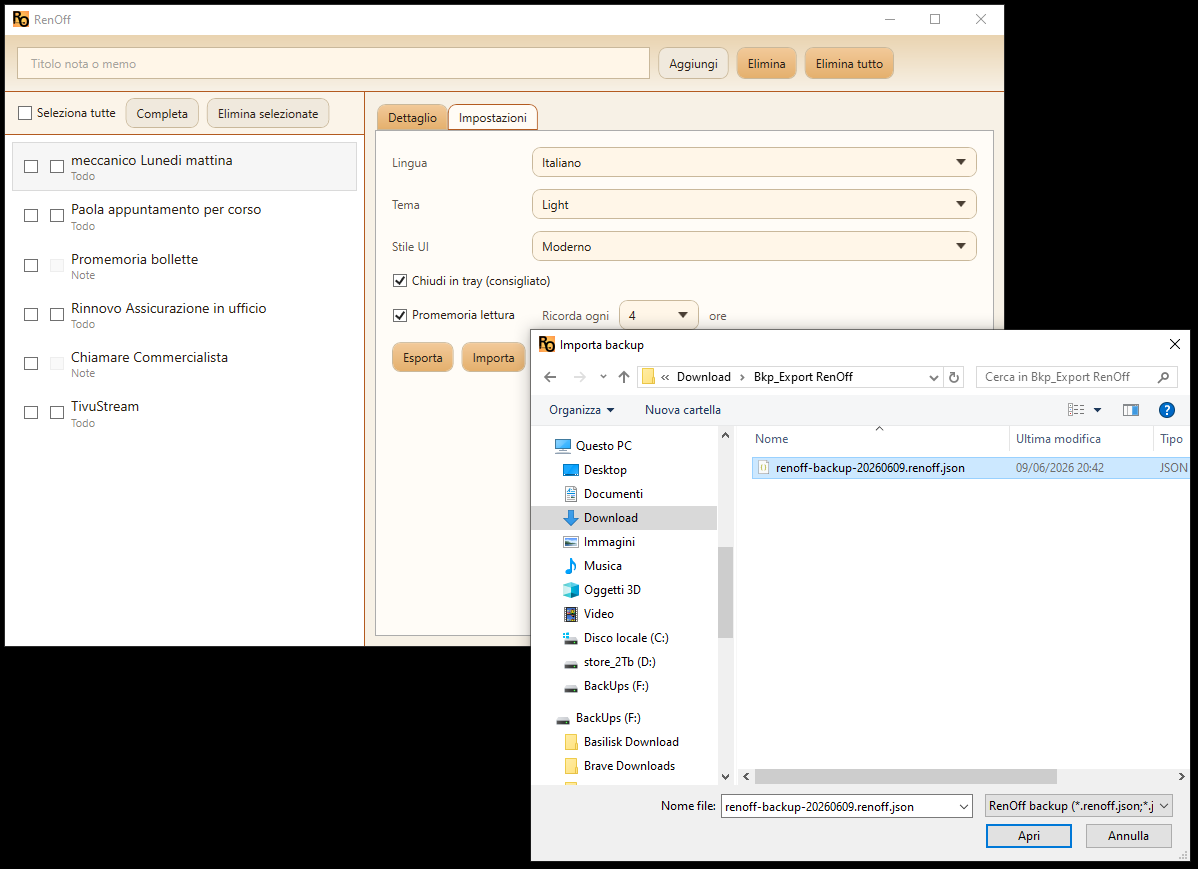
- On the second device, open Settings and click Import.
- Select the backup file and confirm.
If you want an extra security step, encrypt the file before transferring it and use a secure channel.
ZeroCrypt encrypts the file before transfer; ZeroDrop helps transfer it securely.
Tray & notifications
RenOff can stay available in the Windows notification area so reminders keep working when you close the main window.
- In Settings, enable Close to tray.
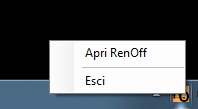
- Close the main window: RenOff stays in the tray.
- Right-click the tray icon to open the menu.
Troubleshooting
Notifications do not show up
- check Windows notification settings
- ensure the app is not silenced (Focus Assist / Do Not Disturb)
I don’t know what to run after downloading
With the self-contained build, after extracting the archive, run RenOff.App.exe.